
Workflow Design
How to Use a Vibe Coding Keyboard With a Laptop Setup
Jun
A laptop setup is a natural place for a vibe coding keyboard because laptop desks are usually short on dedicated controls. The built-in keyboard handles typing, the trackpad handles navigation, and AI tools add a new layer of repeated actions: voice input, approval, cancellation, and prompt submission. A small keypad can give that layer its own space.
The challenge is space. A laptop setup cannot absorb every gadget. The device has to earn its place by reducing reach, not adding clutter.
Start with the laptop’s physical constraints
Laptops compress everything into one rectangle. Keyboard, trackpad, screen, speakers, ports, and sometimes the microphone all share a tight footprint. That leaves limited room for extra hardware.
Before placing a vibe coding keyboard, notice how you actually use the laptop. Do you type on the built-in keyboard? Do you use an external mouse? Is the laptop centered or off to the side? Do you work in cafes, on a stand, or at a fixed desk?
The right placement depends on that reality. A setup that looks clean in a photo may be awkward after ten minutes of real work.
One quick test is to open an AI coding tool and run through the physical loop without sending anything: trigger voice, pretend to submit, pretend to approve, pretend to cancel. If any action feels like a reach, change placement before building habits.
Choose USB when stability matters
USB is often the easiest starting mode. It is reliable, simple to troubleshoot, and does not depend on pairing. If you are setting up the keypad for the first time or using it at a fixed desk, wired mode can reduce uncertainty.
The downside is cable management. Laptop ports may be on the wrong side. A cable may cross the trackpad area or fight with a mouse. If the cable makes the best placement impossible, the setup will not feel good.
Use USB first to test behavior. Then decide whether the cable belongs in your daily layout.
A short cable can work well for a fixed laptop stand. A longer cable may help if the laptop ports sit on the wrong side. If the cable crosses the trackpad or mouse path, it will probably bother you more than expected.
If you use a USB-C hub, test the keypad through the hub and directly through the laptop. Some desk issues are really hub, cable, or port issues. Knowing the reliable path prevents blame from landing on the wrong part of the setup.
Use Bluetooth for flexible placement
Bluetooth helps when the laptop moves or when the best keypad position is not near a port. You can place the device beside the trackpad, next to an external mouse, or on the left side of the laptop without routing a cable across the desk.
Wireless is especially useful for compact desks and standing laptop stands. It lets the keypad sit where the hand naturally reaches instead of where the cable permits.
Test pairing before relying on it during a serious session. A workflow control should feel boringly reliable.
Keep one fallback habit: if Bluetooth acts strange during an important task, switch to USB instead of debugging wireless behavior in the middle of a coding session. The work matters more than the connection mode.
Keep voice input practical
Laptop microphones can be good enough for simple voice prompts in a quiet room. They can also pick up keyboard noise, fans, and nearby conversations. If voice input is part of the setup, test it in the places you actually work.
A microphone key is still useful even with the built-in mic because it gives voice a deliberate trigger. Press, speak, stop, review, send. That pattern is cleaner than leaving dictation vague or always on.
In public spaces, be careful. Voice prompts may reveal private context. Use typing when privacy or noise makes voice a poor fit.
Portable placement should be repeatable
If you move often, choose a simple repeatable placement. Left of the laptop. Right of the trackpad. Beside the external mouse. Whatever you choose, make it easy to recreate so the hand does not relearn the setup every day.
A small pouch, cable habit, or fixed desk zone can help. The less ceremony the setup requires, the more likely you are to use the keypad after the novelty fades.
Portability is not only size. It is how quickly the workflow returns to normal after you sit down.
How HarnessKeys fits a laptop workflow
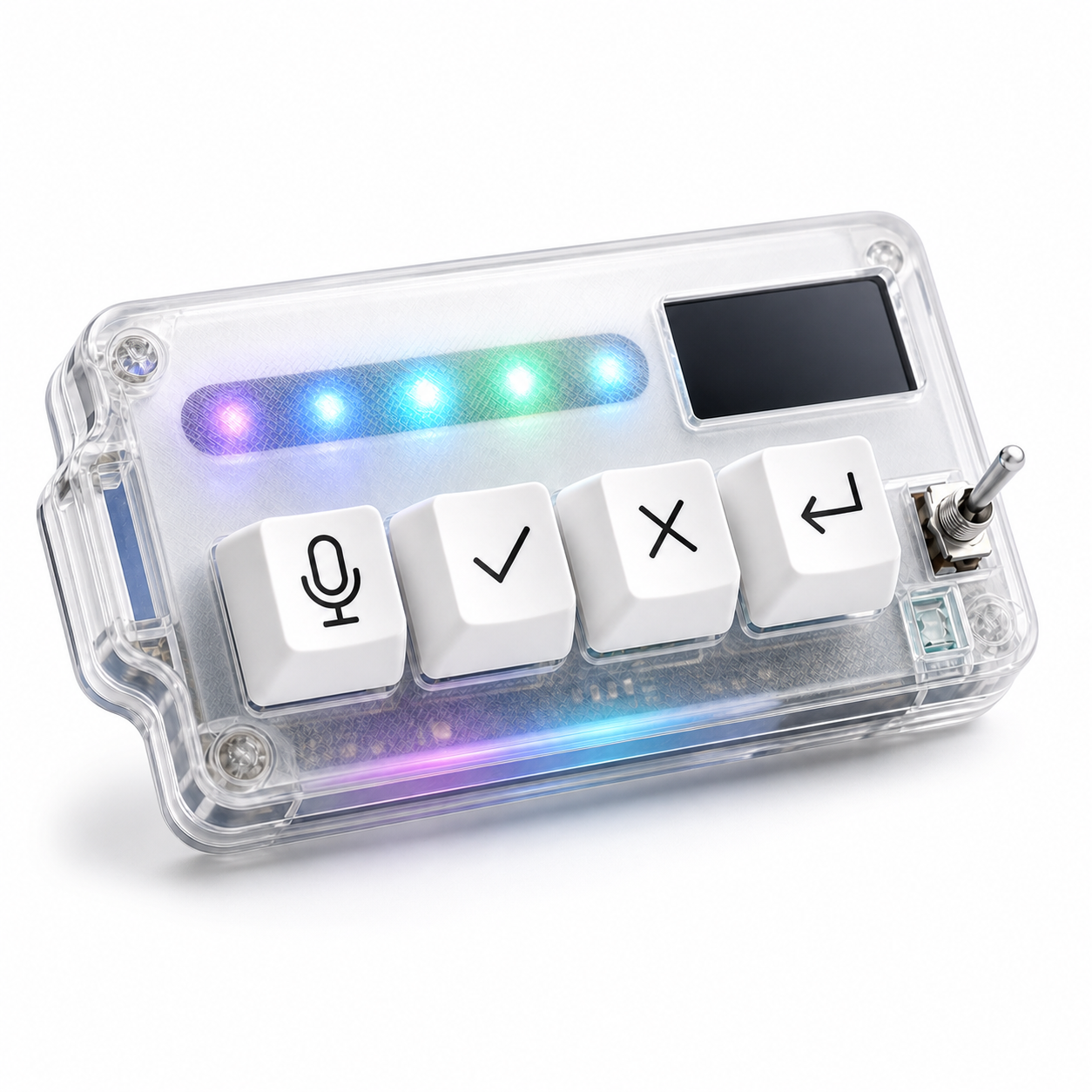
HarnessKeys is compact enough for laptop desks and supports both USB and Bluetooth, which matters for mixed work locations. The four physical keys cover microphone, approve, cancel, and return-style actions, while the custom status screen and RGB light bar provide quick feedback.
For laptop users, the strongest use case is giving AI controls a stable place outside the crowded built-in keyboard. The laptop remains the main computer. The keypad handles the repeated AI workflow loop.
A vibe coding keyboard should make a laptop setup feel less cramped, not more. Start wired, try wireless, protect privacy with voice, and choose a placement your hand can find without looking. For that kind of compact AI desk layer, see the HarnessKeys AI Workflow Keypad.
