
Workflow Design
Desk Placement Tips for a Four-Key AI Workflow Keypad
Jun
Desk placement can decide whether an AI workflow keypad becomes useful or disappears into the clutter. A four-key device is small, but it still needs the right position. If it is too far away, blocked by a laptop, or placed where the wrong hand reaches for it, the device becomes another friction point.
The best placement is boring: close enough to hit without looking, separate enough that the AI actions feel distinct from normal typing, and stable enough that your hand can find it tomorrow.
Decide which hand should own the controls
Start with hand ownership. If your right hand spends a lot of time on the mouse, the left side of the keyboard may be a good place for the keypad. You can approve, cancel, or start voice input without leaving the mouse.
If you are mostly keyboard-driven, place the keypad near the hand that can reach it with the least posture change. Some people prefer it above the main keyboard. Others like it beside the spacebar area. There is no universal answer.
The test is simple: can you hit the key while keeping your eyes on the code?
Run that test with the actual actions, not just a blank key press. Pretend you are reviewing a diff, then approve. Pretend the AI is drifting, then cancel. Pretend you are about to dictate, then reach for the microphone key. The right placement shows up quickly.
Between keyboard and mouse can work well
The space between keyboard and mouse is valuable because it sits inside the normal work zone. A small keypad placed there can become a bridge between typing and pointing. Approve or cancel actions are easy to reach while reviewing code.
Be careful not to crowd the mouse path. If the keypad forces awkward mouse movement, it creates the problem it was meant to solve. Leave enough room for normal navigation.
For compact desks, angle the keypad slightly. A small rotation can make a big difference in reach comfort.
Also watch wrist position. If pressing the keypad forces your wrist to bend sharply or hover awkwardly, the placement will become annoying during longer sessions. Comfort beats symmetry.
If the device slides when pressed, fix that before judging the layout. A small pad, grippy surface, or flatter cable route can make the same position feel much more reliable.
Laptop setups need tighter decisions
Laptop users have less space and more variation. Sometimes the laptop is centered. Sometimes it is off to the side with an external monitor. Sometimes there is no external keyboard at all. Placement needs to fit the actual session.
If using the laptop keyboard, place the keypad on the side that does not block trackpad movement. If using an external keyboard, treat the setup more like a desktop. Bluetooth can help because the keypad does not have to follow a cable path.
Do not place the device behind the laptop screen hinge or under a monitor shelf where it becomes hard to reach.
For laptop-only work, the best spot is often beside the trackpad rather than behind the keyboard. The keypad should serve the AI controls you reach for between typing and reviewing, not disappear into the back row of the desk.
Standing desks change the cable problem
Standing desks make cable routing more important. A cable that feels fine while sitting may pull, snag, or shift when the desk moves. If the keypad supports Bluetooth, wireless placement can be more comfortable for adjustable desks.
If you prefer USB, route the cable with enough slack for desk movement. The keypad should stay in the same position when the desk rises or lowers. If it slides around, muscle memory never settles.
Placement should survive the way you actually use the desk.
Keep status feedback visible but not central
If the keypad has a status screen or light bar, place it where a quick glance is possible. Do not make it the visual center of the desk. The main screen still deserves attention.
A good spot lets you notice connection or listening state without turning your head. If you never see the feedback, it loses value. If you stare at it constantly, it is too prominent.
Small hardware works best at the edge of awareness.
How HarnessKeys fits into placement planning
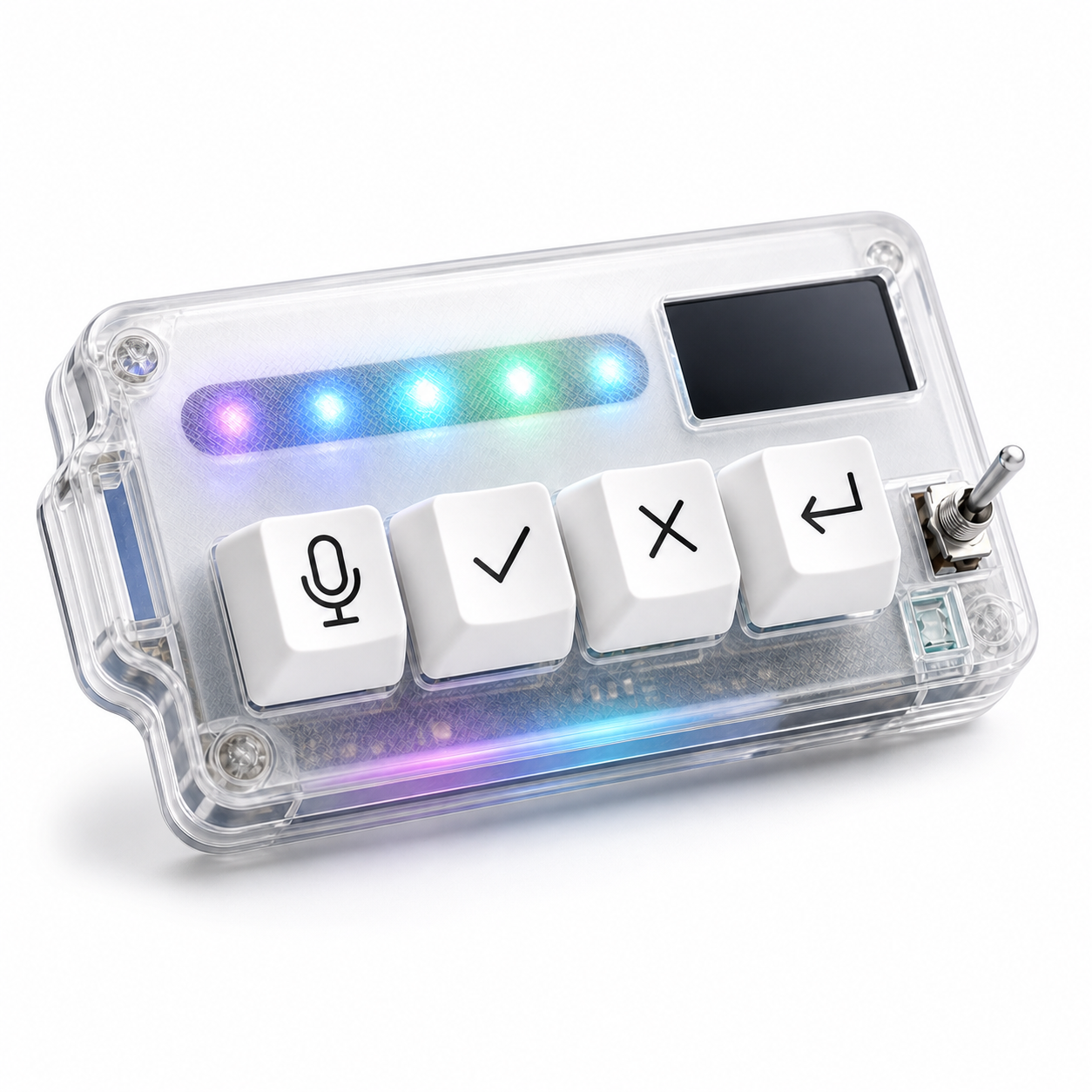
HarnessKeys is compact enough to sit near a main keyboard, beside a mouse, or in a laptop setup. USB and Bluetooth support give users two placement styles: stable wired setup or flexible wireless positioning. The custom status screen and RGB light bar are useful when they remain glanceable.
Because the device has four focused keys, it does not need a large central position. It should live where microphone, approve, cancel, and return-style actions can be reached without thought.
Placement is not a cosmetic choice. It is the difference between a keypad you use and a keypad you own. Try one position for a week, watch hesitation, then adjust. For a compact device built for this kind of desk role, see the HarnessKeys AI Workflow Keypad.
