
Vibe Coding Fundamentals
What Is One-Key Workflow Control?
Jun
One-key workflow control means assigning a repeated workflow action to a single physical key so the user can perform it quickly and consistently. The phrase can sound vague on a product image, so it deserves a plain explanation. It does not mean one key magically completes an entire job. It means one key controls one meaningful step in a workflow.
For AI coding, that step might be starting a spoken prompt, approving a suggestion, cancelling an agent run, or sending the next instruction. The value comes from making a repeated action easy to reach by touch, not from hiding complexity behind a dramatic button.
A useful one-key action has a clear boundary
The best one-key actions have a beginning and an end. Press the microphone key to begin voice input. Press approve after reviewing a change. Press cancel to stop the current direction. Press return to send or continue the next turn. The user knows what the action means before pressing the key.
That clarity is important because AI workflows can already feel ambiguous. Is the tool listening? Has the prompt been sent? Did the agent stop? Are we accepting the whole change or just moving to the next suggestion? A one-key control should remove ambiguity, not add more.
If the meaning of a key changes constantly, it stops being a control and becomes a guessing game.
Good examples are small and repeatable
Good one-key workflow controls usually handle actions that happen often. Push to talk is a strong example. The developer has context in mind, presses one key, speaks the instruction, then sends it when ready. The key does not write the prompt. It opens the moment for the developer to speak.
Approve is another good example when the developer has already reviewed the result. The physical key turns a visual click into a tactile decision. Cancel is useful because it lets the user stop a bad AI direction quickly. Return or continue is useful because it closes the loop and starts the next turn.
These actions are not impressive on paper. That is why they work. They are simple enough to trust during real work.
Bad examples hide too much risk
A bad one-key workflow control tries to do too much. One key to accept every change without review. One key to run deployment. One key to delete generated files. One key to rewrite a whole module without a confirmation step. Those mappings may look efficient, but they create risk.
The problem is not automation itself. Automation is useful when the boundaries are clear. The problem is giving a single casual press too much authority. AI coding already requires careful review because generated output can be wrong in quiet ways. A one-key control should support review, not bypass it.
If pressing a key can create damage that is hard to undo, the action deserves friction.
Safety guardrails make one-key controls better
Good guardrails are practical. Keep destructive actions out of the first mapping set. Make approval follow reading. Keep cancel easy. Review spoken prompts before sending if transcription accuracy matters. Separate return-style submission from ordinary typing when accidental sends would be annoying.
You can also use placement as a guardrail. Put frequently used controls where the hand naturally rests. Put riskier controls farther away or behind a software confirmation. Physical design should make the common path smooth and the dangerous path deliberate.
This is why a small keypad can be safer than a large board full of mysterious macros. Fewer keys mean fewer accidental meanings.
One-key does not mean one-size-fits-all
Different developers need different actions. A person who speaks most prompts may value the microphone key most. A person using an agent that asks for permission often may value approve and cancel. A person doing review-heavy work may want a return-style key that moves through prompt turns cleanly.
The important part is to map the action you already repeat, not the action that sounds clever. If you never use voice input, a microphone key will not save time. If you rarely approve agent steps, an approve key may matter less. The workflow should come first.
A week of honest use will reveal more than a configuration screen. Notice which key you reach for without thinking. Notice which key you ignore. Adjust from there.
How HarnessKeys frames one-key workflow control
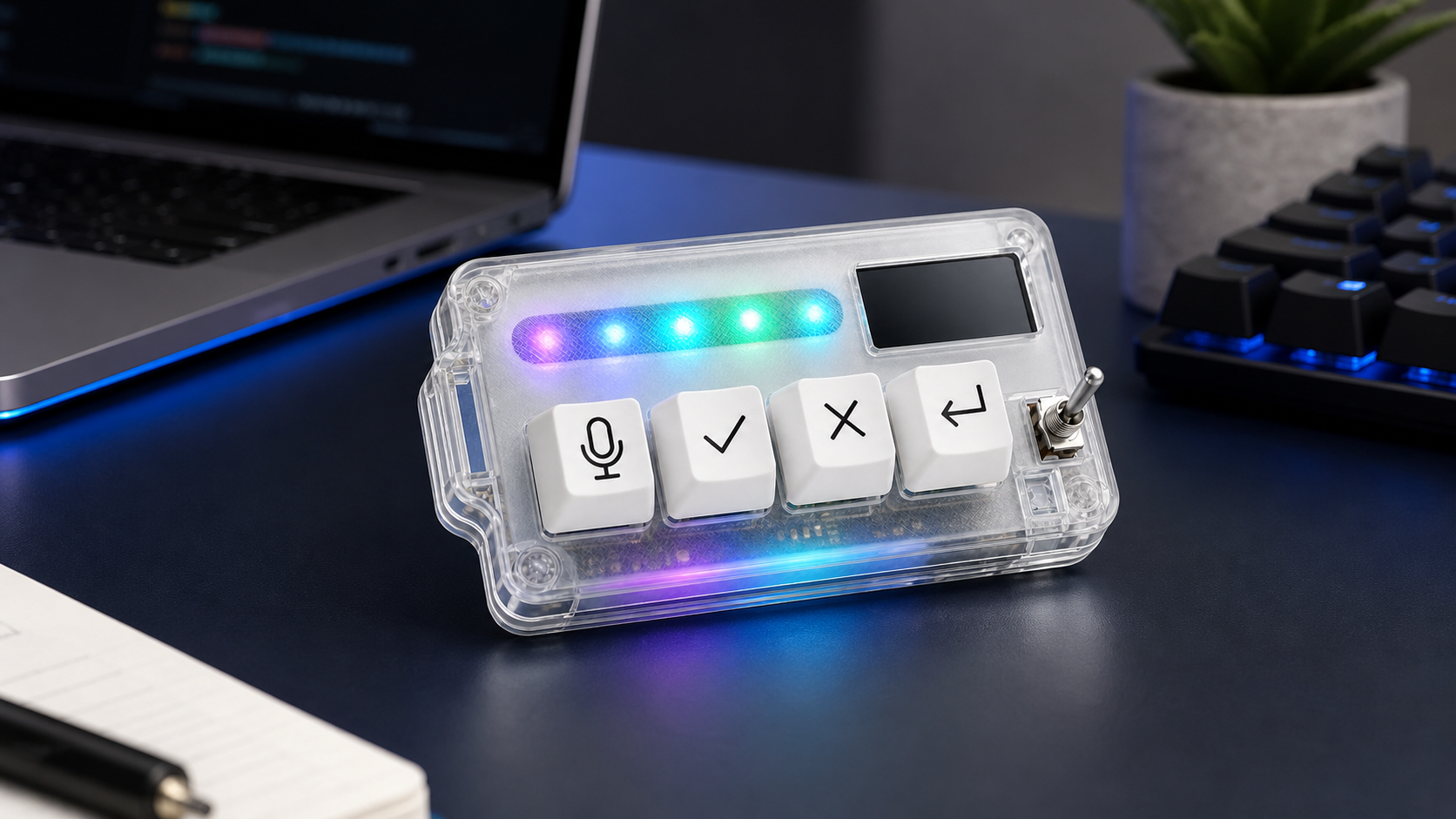
HarnessKeys uses one-key workflow control in a focused way. The device is built around four physical actions: microphone, approve, cancel, and return-style control. Each key represents a common AI coding step rather than a broad hidden automation.
That framing is important. HarnessKeys is not promising that one button will write better software. It gives repeated decisions a tactile place on the desk. The developer still decides what to say, what to accept, when to stop, and what to send next.
The hardware adds USB and Bluetooth support, a custom status screen, an RGB light bar, and a compact transparent body. Those details support the workflow, but the core idea is simple: make the repeated AI control loop easier to perform.
One-key workflow control is best when it is modest. One key, one repeated action, one clear result. If that action helps you stay in the AI coding flow, it earns its place. If it hides judgment or adds confusion, it does not. For a small device built around practical one-key controls, see the HarnessKeys AI Workflow Keypad.
