
Vibe Coding Fundamentals
What a Custom Status Screen Adds to an AI Workflow Keypad
Jun
A custom status screen on an AI workflow keypad can be useful, but only if it does real work. Buyers are right to be skeptical. A tiny display can either reduce uncertainty or become a decoration that looks good in photos and adds little during coding.
The practical question is simple: what does the screen tell you that helps the workflow? If it confirms connection state, mode, input status, or a simple workflow cue, it can earn its space. If it only repeats branding or adds motion, it is less important than key feel and reliable control.
Status feedback is valuable because AI work is state-heavy
AI coding has more invisible states than ordinary typing. A tool may be waiting for input, listening for dictation, generating a response, asking for approval, or stopped after cancellation. Some of those states are visible in software, but not always where the user’s eyes are focused.
A small screen can give quick orientation. It can remind the user which mode the keypad is in or whether the device is connected. That feedback reduces a specific kind of hesitation: “Is this thing ready for the action I am about to perform?”
The screen does not need to show a lot. In fact, it should not. The best status information is glanceable and quiet.
Connection state should be obvious
For a device that supports both USB and Bluetooth, connection state matters. A user should not have to guess whether the keypad is wired, paired, asleep, or active. When a key press does not do what was expected, connection uncertainty is one of the first things people check.
A status screen can reduce that support burden by making the current state easier to see. It can also make setup less stressful. During the first few days with any new desk device, users want reassurance that the hardware is behaving normally.
This is not glamorous, but it is practical. Good hardware often wins by removing small doubts.
Mode clarity prevents wrong actions
Mode clarity matters when a device can support different workflows or contexts. A key may feel safe in one mode and confusing in another. If the user does not know which mode is active, even a simple action can become uncertain.
A custom status screen can act like a label that changes with the workflow. It does not need to show a full menu. It just needs to help the user understand what the controls are currently meant to do.
For AI coding, this can be as simple as reinforcing a voice/input/control context. The key is to make the screen useful at the moment before action, not after the mistake.
Reducing uncertainty is different from adding distraction
There is a fine line between feedback and distraction. Developers do not need another animated panel competing with the editor, terminal, and AI output. If the screen is too busy, it becomes visual noise.
Good status design should be calm. Simple labels, simple states, and predictable signals are better than constant motion. The user should be able to glance once and return to the code.
This is also why a status screen works best when paired with tactile controls. The hand operates the key. The eyes only need a quick confirmation when something is uncertain.
What a screen cannot fix
A screen cannot fix bad mappings. It cannot make a risky shortcut safe. It cannot turn unclear prompts into good prompts. It cannot replace reading AI-generated code. If the workflow design is weak, a display only makes the weak workflow more visible.
It also cannot replace reliable hardware behavior. If key presses are inconsistent or pairing is unstable, a screen will not make the device feel trustworthy. Basics first: connection, key feel, placement, and safe mappings.
Think of the screen as a support layer. Useful, but not the main reason to buy a workflow keypad.
Future workflow ideas for small displays
Small screens become more interesting when they reflect the actual AI workflow. A device might show the active profile, a simple listening state, a connected mode, or a reminder of the four mapped actions. It might show different states for coding, review, support writing, or prompt planning.
The best future ideas will still be restrained. Developers do not need a miniature dashboard for everything. They need confidence that the next key press means what they think it means.
That confidence is where a custom screen can help, especially when paired with consistent keys.
How to judge the HarnessKeys screen
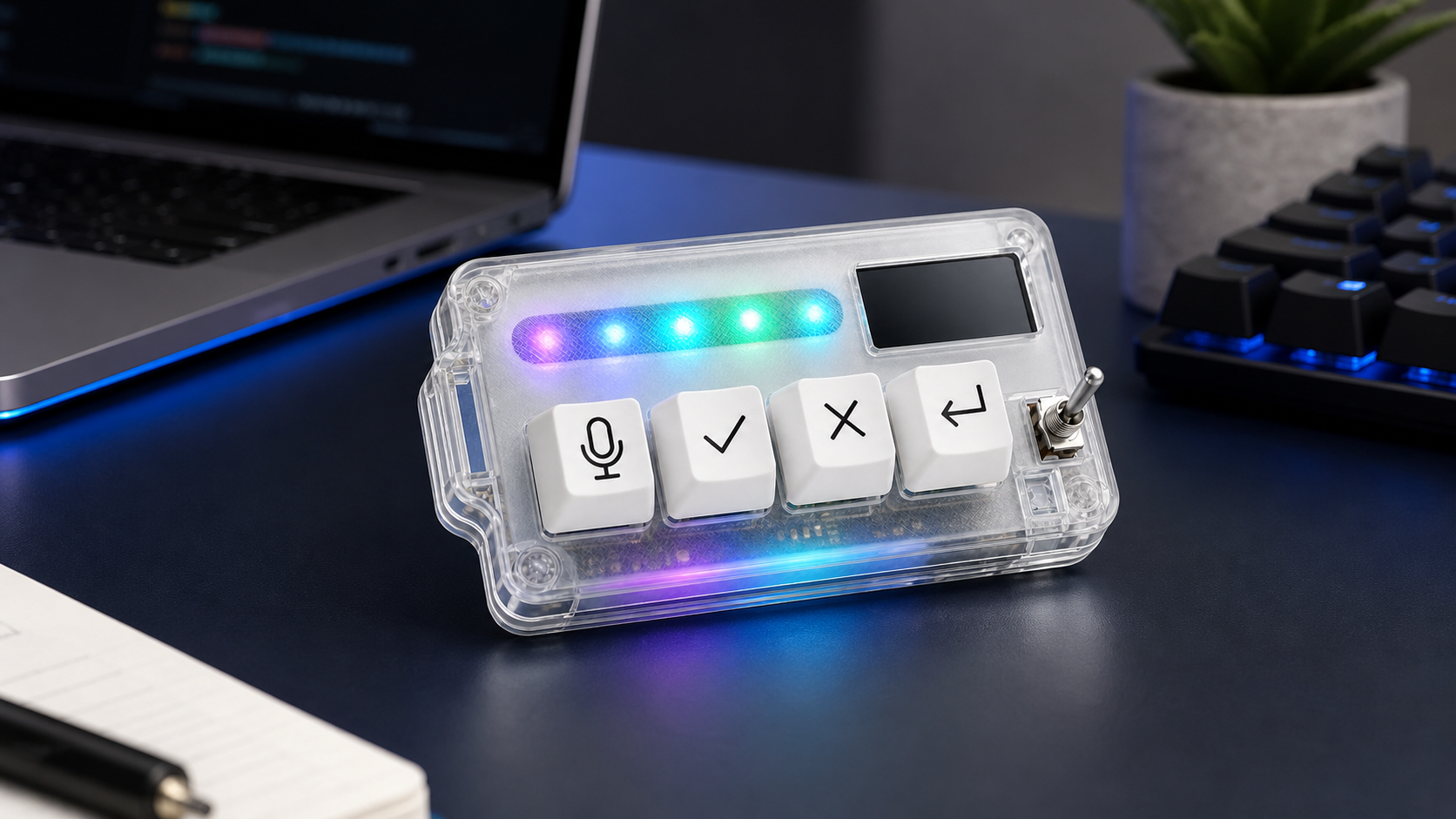
HarnessKeys includes a custom status screen as part of a compact AI workflow keypad. The screen sits alongside four physical keys for microphone, approve, cancel, and return-style actions. The device also includes USB and Bluetooth support, an RGB light bar, and a transparent body.
The screen should be judged as part of that whole control layer. It is not the product by itself. Its job is to make the physical workflow easier to understand at a glance while the keys do the main work.
If you want a large visual command center, a different device may be better. If you want a small keypad where status feedback supports repeated AI actions, the HarnessKeys approach makes sense. The HarnessKeys AI Workflow Keypad uses the screen as one piece of a focused desk control system, not as a replacement for the main display.
