
Vibe Coding Fundamentals
USB Bluetooth or Both: Choosing Connection Modes for a Coding Keypad
Jun
Choosing between USB and Bluetooth for a coding keypad is not just a technical specification. It changes how the device fits on the desk, how reliable it feels, how easy it is to troubleshoot, and whether you can place it where your hand naturally wants it. For AI coding workflows, that matters because the keypad is supposed to reduce friction, not create another thing to manage.
The short answer is that USB is usually the safest first mode, Bluetooth is useful for flexible desk layouts, and having both gives you room to change the setup as your workflow settles.
USB is the best starting point for reliability
USB has a boring advantage: it is direct. Plug in the device, confirm the computer sees it, test the keys, and start mapping the workflow. When something goes wrong, there are fewer possible causes. The cable is connected or it is not. The port works or it does not. The device is recognized or it is not.
That clarity is valuable during setup. New hardware already asks for attention. New AI workflow mappings ask for even more. Starting with a wired connection reduces the number of variables while you learn the device.
USB is also a good choice for fixed desks. If the keypad sits in the same place every day, the cable may not matter. In exchange, you get stable power and fewer pairing questions.
Bluetooth is about placement freedom
Bluetooth becomes attractive when the desk layout changes. Laptop users may move between rooms. Standing desk users may shift their setup during the day. Some developers want the keypad near the mouse, others want it beside the main keyboard, and others want it close to a microphone or laptop edge.
A wireless connection makes that experimentation easier. You can place the keypad where the repeated AI actions feel natural instead of where the cable reaches. That can be the difference between using the device every hour and slowly ignoring it.
The trade-off is that Bluetooth can add pairing, battery, sleep, or operating system quirks. For many users those are minor. For troubleshooting, they are real. That is why a dual-mode device is useful.
Latency expectations should be realistic
For most AI coding controls, extreme low latency is less important than consistency. Approve, cancel, microphone trigger, and return-style actions do not usually need gaming-keyboard timing. They need to happen when expected.
If Bluetooth feels delayed or inconsistent in your environment, use USB. If USB feels physically annoying because the cable blocks the best placement, try Bluetooth. The best connection is the one that makes the workflow feel reliable, not the one that sounds best in a spec list.
Do not judge latency from imagination. Test it during a real session. Press the key you use most and notice whether the response feels trustworthy.
Battery and cable trade-offs are personal
A cable can be ugly, but it is predictable. Battery-free operation means one less thing to remember. For a desk that stays put, that predictability can be worth more than a clean photo.
Wireless placement looks cleaner and may feel better. But if you forget to charge devices or dislike pairing menus, Bluetooth can become the kind of friction you were trying to remove. A workflow keypad should not add a maintenance habit you resent.
Be honest about your desk personality. Some people love a wireless setup. Some people want everything plugged in and stable. Neither is more professional. The better choice is the one you will actually use.
Choosing by workspace type
For a desktop workstation, start with USB. Set the keypad where it belongs, route the cable once, and focus on the workflow. For a laptop that moves often, Bluetooth may be better once setup is complete. For a shared desk or mixed home-office setup, having both modes lets you switch without buying another device.
For travel, Bluetooth can reduce cable clutter, but only if pairing is already tested before you need it. For high-focus coding blocks, USB can be reassuring because the connection state is simple. For casual prompt writing or review, either mode may be fine.
The right connection mode is not permanent. Your first week may be wired. Your second week may be wireless. Your troubleshooting session may go back to wired. That flexibility is a strength.
Why connection mode matters for AI coding controls
AI coding controls are small actions repeated often. If a key occasionally fails, the user loses trust quickly. A microphone key that does not start listening, a cancel key that feels uncertain, or an approve key that requires a second press will break the habit.
That is why connection mode should be judged by workflow confidence. Can you hit the key without thinking? Does it work where the device naturally sits? Can you troubleshoot it quickly if something feels off?
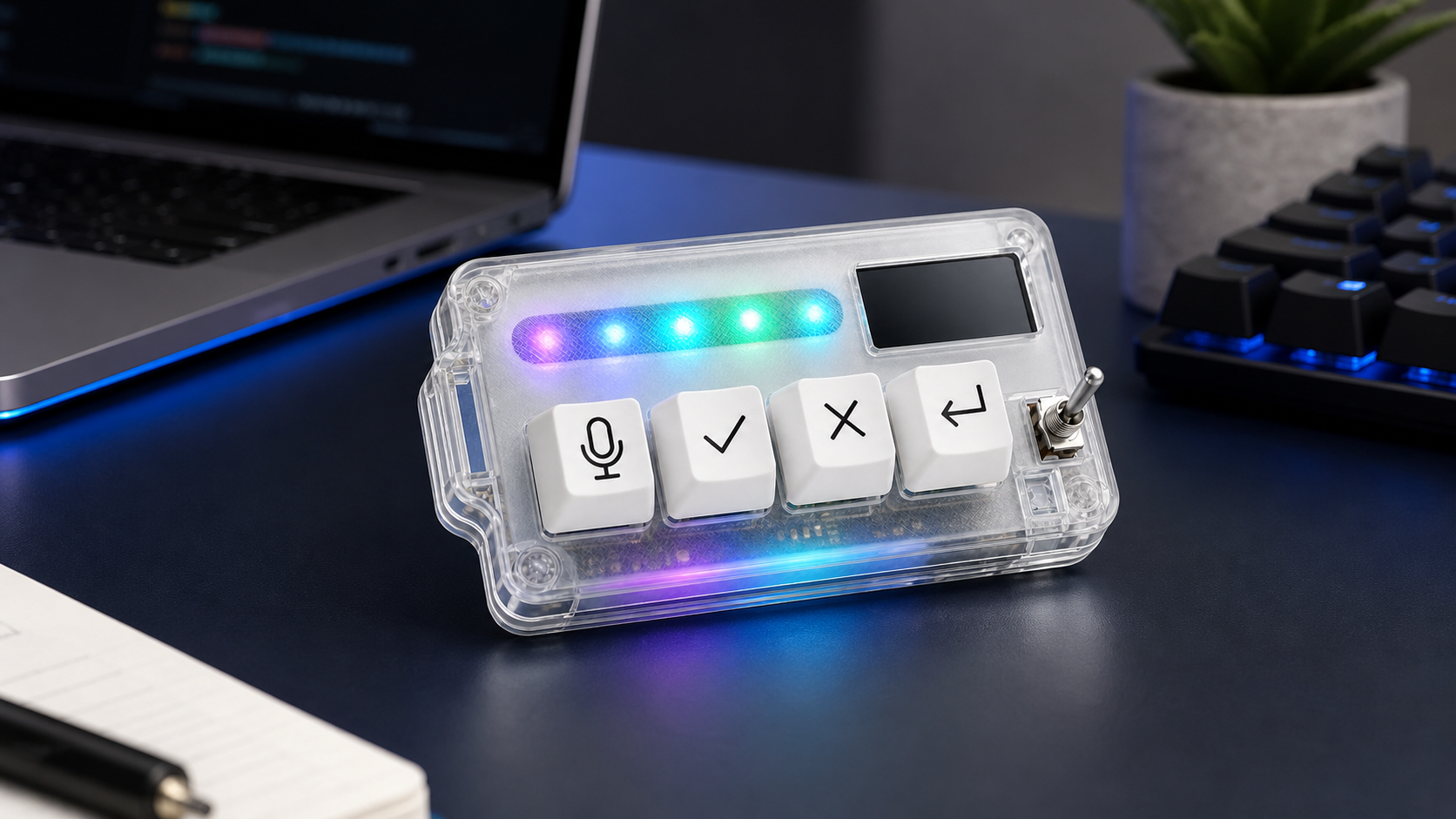
HarnessKeys supports both USB and Bluetooth so users can choose the connection style that fits the session. The device also includes four physical AI workflow keys, a custom status screen, an RGB light bar, and a compact transparent body for desk placement.
If you are unsure, start wired. Learn the mappings. Build the muscle memory. Then try Bluetooth if cable-free placement would make the device easier to reach. The best coding keypad connection is the one that disappears during work. You can review the dual-mode hardware on the HarnessKeys AI Workflow Keypad page.
