
Use Cases and Workflow Playbooks
How to Use HarnessKeys on a Standing Desk
Jun
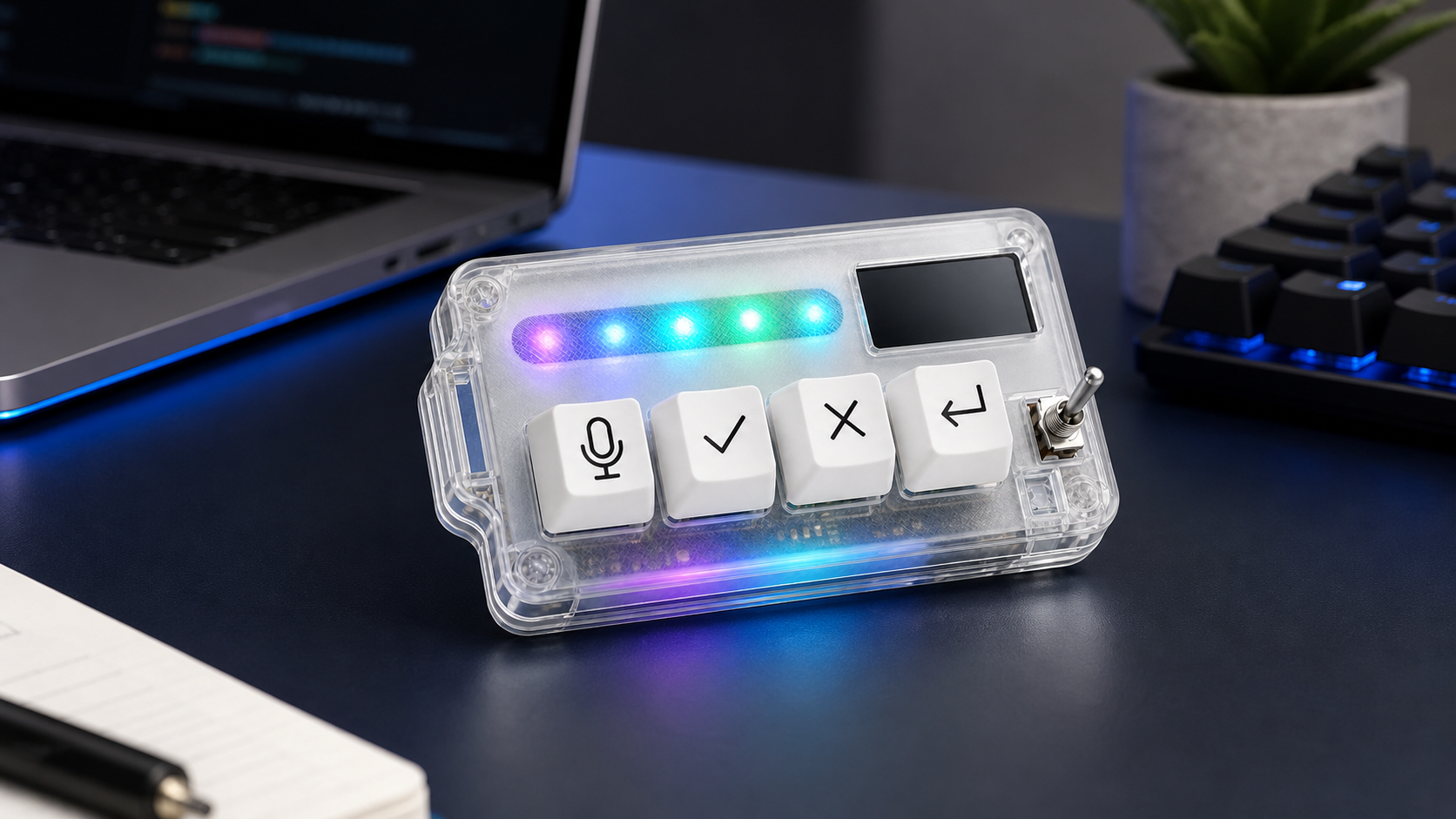
A standing desk changes the way you reach for controls. The keyboard may sit at a different height, the mouse may move farther away, and your hands may rest differently while you think. HarnessKeys can fit well into this setup because a compact keypad can stay close to the hand that controls AI prompts and approvals.
The key is placement. A standing workflow should reduce strain, not add another object you have to reach for. Treat HarnessKeys as part of the ergonomic layout, not just a small accessory.
Place the keypad at natural elbow height
When standing, your elbows and wrists should feel relaxed. Place HarnessKeys where your hand can reach it without lifting the shoulder or bending the wrist sharply. If the keypad sits too far forward or too high, you will stop using it or create fatigue.
Test the placement while actually standing, not while sitting and imagining the setup. Press voice, approve, cancel, and return without looking. If your hand has to search, move the device.
Comfort decides whether the workflow survives.
Keep cable routing out of the movement path
Standing desks move. Cables that seem fine at sitting height can pull, drag, or snag when the desk rises. If you use USB, route the cable with enough slack for the full desk range. Keep it away from keyboard trays, monitor arms, and desk edges.
If cable routing becomes annoying, Bluetooth may be worth testing after the USB baseline is stable. Do not switch only for looks if USB is more reliable for your actual work.
A clean cable path is a safety feature, not just an aesthetic choice.
Use voice prompts to reduce standing typing load
Standing can make long typing sessions feel different. Some people type just as well; others prefer shorter keyboard bursts. Voice input can help with planning prompts, review comments, and context-heavy instructions.
Use the mic key for explanations that would otherwise pull you into a hunched typing posture. Then review the transcribed prompt before sending it. Standing does not remove the need for prompt quality.
Voice is most useful when it protects posture and clarity at the same time.
Separate approve from accidental hand rests
At a standing desk, you may shift weight, rest a hand, or lean slightly while thinking. Place the approve key so it is easy to reach but hard to hit by accident. This matters when AI tools can accept changes or continue actions.
If you notice accidental presses, move the keypad, rotate it, or adjust the mapping. A standing desk setup should feel stable even when your posture changes during the session.
Approve needs intention.
Use cancel as a posture break cue
Cancel can double as a workflow cue. When an AI response drifts, press cancel, step back, and restate the prompt. That tiny pause can prevent both code drift and physical tension. Standing work benefits from moments where you reset the body and the task.
This does not mean every cancellation needs a stretch break. It means the physical stop action can remind you to stop mentally too.
Bad AI direction and bad posture both get worse when ignored.
Watch monitor height during voice review
Voice-heavy AI coding can make you read long responses while standing. Make sure the monitor height supports that. If you crane your neck to review AI output, the keypad is not the problem, but the workflow will still feel tiring.
Place HarnessKeys where it supports the whole posture: eyes on the response, hands relaxed, shoulders quiet, and key presses easy.
A standing setup is a system.
Keep standing sessions time-boxed at first
If you are new to standing desks, do not combine a brand-new posture routine with a complex new AI workflow for hours. Start with short sessions. Use HarnessKeys for one bug fix, one review, or one documentation pass, then sit or take a break.
This helps you notice whether the keypad placement is helping or whether the desk height needs adjustment.
Ergonomics should be tested like software: change one thing at a time.
Recheck placement after the desk moves
Many standing desks do not return to exactly the same working feel after height changes. When you switch from sitting to standing, recheck the keypad position. A placement that feels perfect while seated may be too far forward when standing.
Make this a small habit: adjust height, place hands, tap each key once, then start the AI session. That ritual keeps the device useful across desk modes.
A practical standing desk layout
A good HarnessKeys standing setup puts the keypad close, routes cables safely, uses voice for context-heavy prompts, keeps approve intentional, and gives cancel a comfortable reach. The device should reduce tiny movements, not create new ones.
If the workflow feels natural after a few standing sessions, keep it. If not, move the keypad before changing every mapping. Review the HarnessKeys product page for the compact controller concept.
