
Vibe Coding Fundamentals
AI Coding Is Fast. Your Hands May Still Be the Slow Part.
Jun
AI coding is fast in the most visible place. A model can draft a function, explain an error, or propose a refactor in seconds. But the visible speed can hide a slower layer: your hands still have to drive the session. They move between keyboard, mouse, prompt field, editor, terminal, approve button, cancel button, and back again.
If that movement feels harmless, watch it during a busy hour. The AI may be generating quickly, yet the developer is still doing small physical errands to keep the work moving. The hands become the slow part not because they type badly, but because the workflow asks them to change modes too often.
Generation speed is not workflow speed
It is easy to confuse fast output with a fast workflow. The model produces code quickly, so the session should feel quick. In practice, the developer still has to inspect the output, decide what to trust, run tests, give corrections, and send the next instruction.
That means the real speed is turn-to-turn speed. How quickly can you move from reading an answer to giving the next useful signal? How often do you hesitate because the control you need is in a different panel? How much attention goes into operating the interface instead of judging the work?
A workflow that generates fast but handles slowly can still feel tiring. The AI is not the only part of the system. The human input layer matters.
Hand travel has a cost
Hand travel is the distance between what you are doing and the control you need next. Move from keyboard to mouse. Move from mouse to keyboard. Reach for a laptop trackpad. Click the chat box. Return to the editor. It is a tiny cost, but it repeats.
Developers often optimize the wrong thing. They add a faster model, a longer context window, or a more advanced agent, then still lose rhythm because common actions require awkward movement. The desk setup has not caught up with the software.
This is especially noticeable during review. Your eyes are on a diff. Your brain is deciding whether the change is safe. Then your hand has to go find the approve control. The decision is already made, but the interface still asks for more attention.
Mouse interruptions are different from keyboard work
The mouse is not bad. It is excellent for navigation, selection, and visual work. The problem is when a mouse click becomes the default path for actions that happen constantly during AI coding.
Approve, cancel, continue, retry, and send are not rare actions. If they live only behind visual buttons, the developer keeps paying a visual search cost. Even when the button is easy to find, the eyes still leave the code. The hand still changes posture. The brain still shifts from reviewing to operating.
Dedicated physical controls reduce that cost because the location stays fixed. The key is always where it was yesterday. The hand does not need the screen to find it.
Dedicated controls should cover decisions, not decoration
The answer is not to put every possible command on a separate device. That can make the desk slower. A good hardware layer covers actions that are frequent, meaningful, and easy to remember.
In AI coding, those actions are often decisions: speak the next prompt, approve this result, cancel that path, continue to the next turn. They are not decorative controls. They are the small levers that keep the session moving.
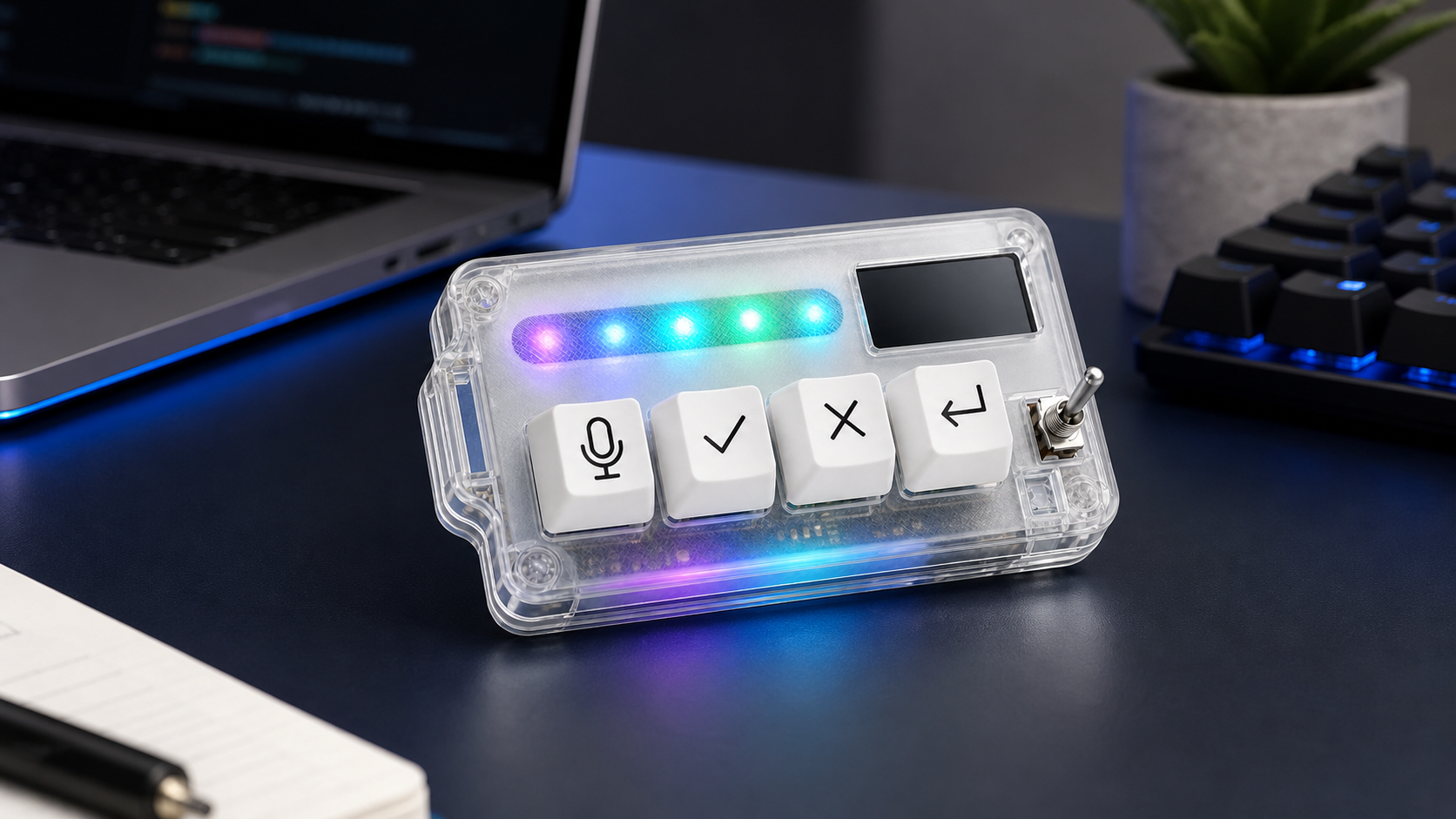
When those controls are tactile, the workflow becomes more consistent. You can press a microphone key to capture intent, an approve key after reading a change, a cancel key when the AI drifts, and a return key to send the next instruction. The session feels less like chasing UI elements and more like steering.
Practical benchmarks for your own desk
You can test whether your hands are the slow part without buying anything first. Run one normal AI coding session and count five things: how often you leave the editor to click an AI control, how often you type a long prompt that would be easier to say, how often you hesitate before cancelling, how often you accidentally submit too early, and how often you lose focus after moving between panels.
If those events are rare, your current setup is probably fine. If they happen every few minutes, the input layer deserves attention. You might fix it with better shortcuts. You might move panels around. You might add voice input. Or you might use a compact keypad for the repeated controls.
The important part is measuring the real friction. Do not buy hardware because it looks interesting. Buy or configure hardware when it solves a repeated problem you can name.
Where HarnessKeys helps, and where it does not
HarnessKeys helps when the repeated AI coding actions are the friction: microphone, approve, cancel, and return-style continuation. It gives those controls physical keys, supports USB and Bluetooth, and includes a custom status screen plus an RGB light bar for quick device feedback.
It does not write better prompts for you. It does not review code on your behalf. It does not replace careful testing. If the bottleneck is unclear requirements or weak review habits, fix those first. Hardware should support judgment, not cover for missing judgment.
But when the AI is fast and your hands are constantly doing small support work, a dedicated control surface can make the session feel cleaner. The promise is modest and useful: fewer awkward reaches, clearer repeated actions, and less attention spent finding buttons. For that kind of workflow, the HarnessKeys AI Workflow Keypad is designed to keep the common AI controls under your hand.
