
Vibe Coding Fundamentals
From Keyboard Shortcuts to Workflow Keypads: The New AI Coding Desk
Jun
Keyboard shortcuts were built for software that waits for commands. AI coding tools behave differently. They ask for intent, produce drafts, request approval, continue across steps, and sometimes need to be stopped before they waste more time. That is why workflow keypads are showing up on AI coding desks: not because developers forgot shortcuts, but because the shape of the work changed.
A shortcut usually means “do this exact operation.” Open a file. Find text. Run a command. Format the document. A workflow key means something broader: start listening, accept this result, cancel that direction, move to the next instruction. Those actions are less about one app and more about steering a session.
Shortcuts solved the old kind of repetition
Developers already know the value of shortcuts. Command palettes, editor chords, terminal aliases, snippets, and window-management keys can save enormous time. A good shortcut removes a predictable bit of friction.
But traditional shortcuts assume the developer knows the next precise operation. AI-assisted work is often more conversational. The developer describes a goal, sees what the model proposes, then decides whether the next move is approval, correction, cancellation, or another prompt. The repetition is no longer only “open this tool.” It is “judge this output and steer the agent.”
That judging step is where the desk starts to feel different. The best interface is not always another hidden key chord. Sometimes the useful action deserves a visible, tactile control.
AI-agent actions are more like traffic signals
An AI coding session has a stop-and-go rhythm. The agent suggests a patch. You read it. Green light: continue. Red light: stop. Yellow light: explain what is wrong and narrow the task. If every signal requires finding a button in the UI, the flow gets choppy.
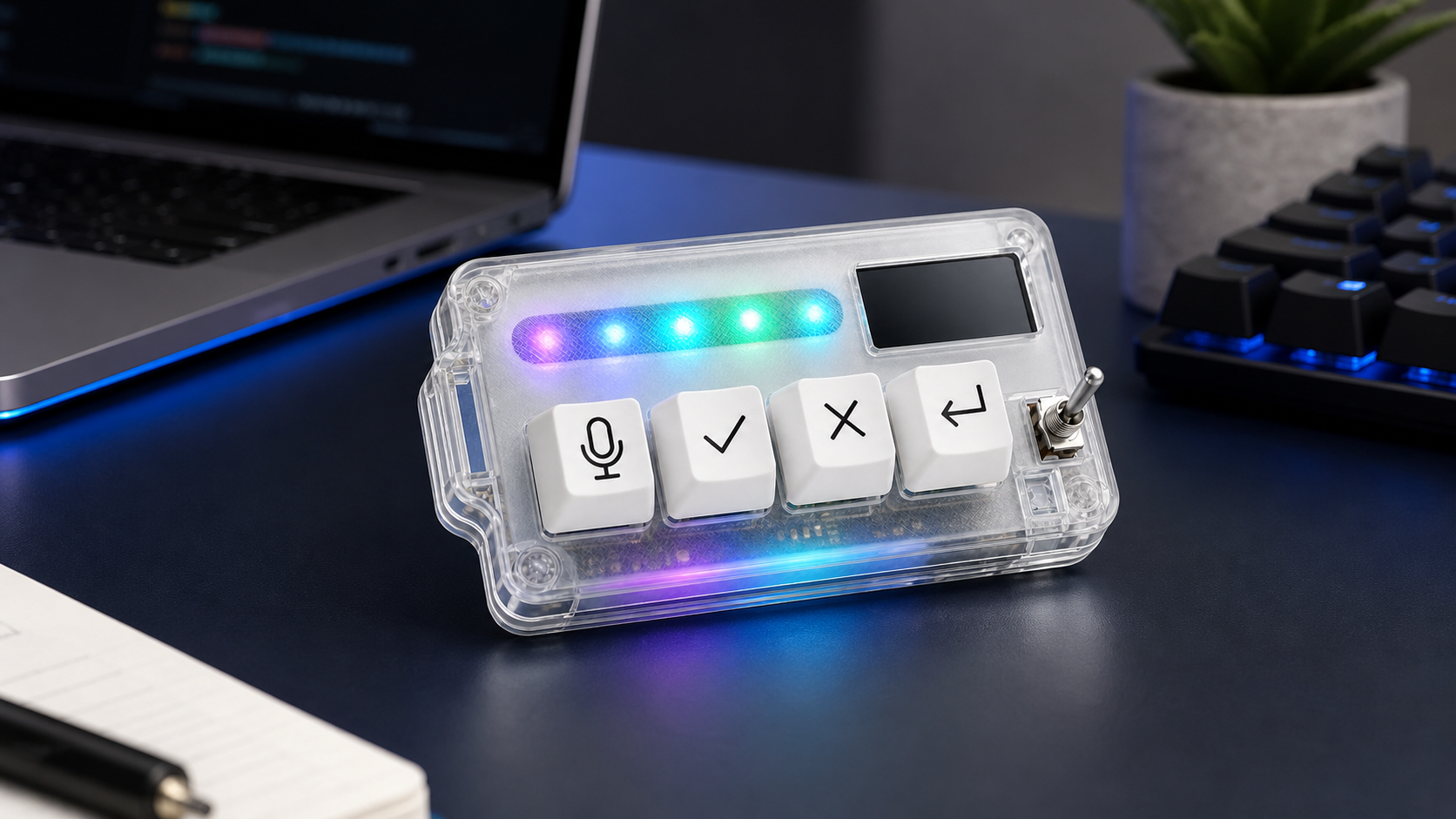
Dedicated keys make those signals feel clearer. Approve is not just a click; it is a deliberate yes. Cancel is not failure; it is steering. Return is not a normal Enter key; it is the next turn in the conversation. A microphone key is not a novelty; it is the start of a spoken instruction.
This is why a workflow keypad can be useful even for someone who already has excellent keyboard habits. It creates a separate physical language for AI-agent control.
Fewer keys can be better
The obvious way to build an AI desk is to add more: more screens, more buttons, more macros, more dashboards. That can work for some people. It can also become distracting. If a device has too many possible actions, the user has to keep remembering the system instead of using it.
For AI coding, a small set of high-frequency actions often beats a large set of clever ones. Speak. Approve. Cancel. Continue. Those four actions are easy to remember because they match the natural loop of the session.
There is a discipline to keeping the layout small. It forces the owner to ask: what do I actually do dozens of times a day? Not what could be automated, not what looks impressive on a desk photo, but what repeatedly interrupts concentration.
Desk placement changes whether the device gets used
A workflow keypad should live in the path of the hand. If it is pushed behind a laptop stand or hidden next to a monitor base, it becomes a decoration. The best spot is usually near the main keyboard, close enough to hit without looking, but separate enough that the special actions do not feel like normal typing.
Right-handed mouse users may prefer the keypad on the left, where it can handle approve/cancel while the right hand stays on the mouse. Heavy keyboard users may place it just above or beside the main keyboard. Voice-first users may keep it near the microphone or laptop edge so the push-to-talk motion feels natural.
There is no universal placement. The rule is simple: if you have to think about reaching for it, move it.
Choosing the first four actions
Start with actions that are frequent, safe, and easy to understand. Microphone is a good candidate because it creates a clear voice-input boundary. Approve is useful when an AI tool regularly asks for confirmation. Cancel matters because stopping bad work early is part of a responsible AI workflow. Return or continue keeps the next prompt moving without making the user hunt through the interface.
Avoid assigning destructive commands at first. Do not make a physical key delete branches, overwrite files, or run deployment steps unless there is a strong confirmation layer. The first version of the workflow should be boring enough to trust.
After a week, review what you actually used. If one action never gets touched, change it. If you keep wishing for a different control, that is useful evidence. A workflow keypad should adapt to the real session, not to the fantasy setup you imagined on day one.
Where HarnessKeys fits on the AI coding desk
HarnessKeys is designed as a compact physical layer for the AI coding loop. It uses four physical keys for microphone, approve, cancel, and return-style actions. It supports USB and Bluetooth, includes a custom status screen, has an RGB light bar, and uses a transparent body that is meant to sit visibly on the desk without taking over the whole workspace.
That makes it different from a full macro pad or a visual control deck. It is not trying to become the center of every app. It is focused on a smaller question: which AI workflow decisions should be easy to make by touch?
If your current shortcuts already cover everything, you may not need a workflow keypad. If your AI sessions feel broken by repeated mouse travel, unclear approval moments, or awkward voice prompting, a dedicated device may clean up the rhythm. The point is not to make the desk look futuristic. The point is to keep the developer in the work a little longer. You can review the hardware details on the HarnessKeys product page.
