
Workflow Design
How to Use a Microphone Key Without Breaking Developer Flow
Jun
A microphone key can make AI coding faster, but only when it protects developer flow. If voice input feels like an interruption, people stop using it. If it starts too easily, captures too much, or sends messy transcripts, it becomes another source of friction.
The goal is not to talk to the computer all day. The goal is to give spoken intent a clear doorway into the AI workflow. A good microphone key creates that doorway: press, speak, review when needed, send, and return to the code.
Use push-to-talk as the default pattern
Push-to-talk is a strong default because it gives the developer control over the capture window. You press when you mean to speak to the tool. You stop when the thought is complete. The microphone is not guessing whether a muttered idea belongs in the prompt.
This matters because developers think out loud. They read error messages, question their own assumptions, and change direction mid-sentence. Always-on dictation can turn that thinking into noise. A key-based trigger keeps spoken prompts intentional.
If push-to-talk feels too restrictive later, you can experiment. But it is the safest first pattern for a desk where coding, reading, and speaking overlap.
Give dictation a start and a stop
Voice input breaks flow when the developer has to wonder whether dictation is active. A microphone key should make the state obvious. Press to start. Release or press again to stop. Then review or send. Whatever pattern you choose, make it repeatable.
Do not bury the stop action. A long spoken prompt can go wrong halfway through. The room may get noisy. You may realize the instruction is poorly framed. Stopping capture should be as natural as starting it.
Good voice workflows are not about endless speech. They are about clean capture boundaries.
Avoid accidental capture
Accidental capture is the fastest way to make voice feel unprofessional. It can record half thoughts, private comments, background noise, or sensitive details that should not become part of an AI prompt. The hardware and software pattern should reduce that risk.
Place the microphone key where you can hit it deliberately but not casually. Avoid mappings that trigger voice when you brush the device. If the setup has a status screen or light feedback, use it to confirm when listening is active.
Privacy is part of flow. Developers relax when they trust that voice only starts when they asked for it.
Pair voice with editor context
Spoken prompts are stronger when the AI tool already has useful context. If the relevant file, diff, error, or test output is visible to the tool, the voice prompt can focus on intent. “Fix this without changing the public API” is useful when “this” is clear.
If the context is not clear, voice can become vague. The transcript may be fluent, but the AI still lacks the details it needs. Before pressing the microphone key, make sure the tool has the file, selection, log, or previous message that makes the spoken instruction meaningful.
A good routine is context first, voice second. Select or expose the relevant material, then speak the instruction that frames it.
Review transcripts until trust is earned
Transcription can be good and still make subtle mistakes. A package name, variable, or negation can change the meaning of a prompt. Early in a voice workflow, review the transcript before sending anything important.
Over time, you will learn which prompts are safe to send quickly and which require a second look. High-level intent may be fine. Exact commands probably need review. Sensitive or risky tasks deserve extra caution.
Do not let speed pressure you into sending sloppy instructions. Voice should make better context easier to provide, not make bad prompts faster.
Also keep the microphone key from becoming a universal command key. It should not approve code, cancel generation, and submit prompts depending on a hidden mode the user cannot see. Voice capture is already a special enough action. Give it a stable meaning, then let the other keys handle approval, cancellation, and return-style movement.
Practice with low-risk prompts first
The best way to build a microphone habit is to practice on low-risk tasks. Ask the AI to summarize a file, compare two approaches, suggest test cases, or explain an error. These tasks let you learn the capture pattern without risking unwanted changes.
Once the key feels natural, move into more active coding tasks. Use voice to define scope, set constraints, and describe what should happen next. Keep the keyboard nearby for exact names and corrections.
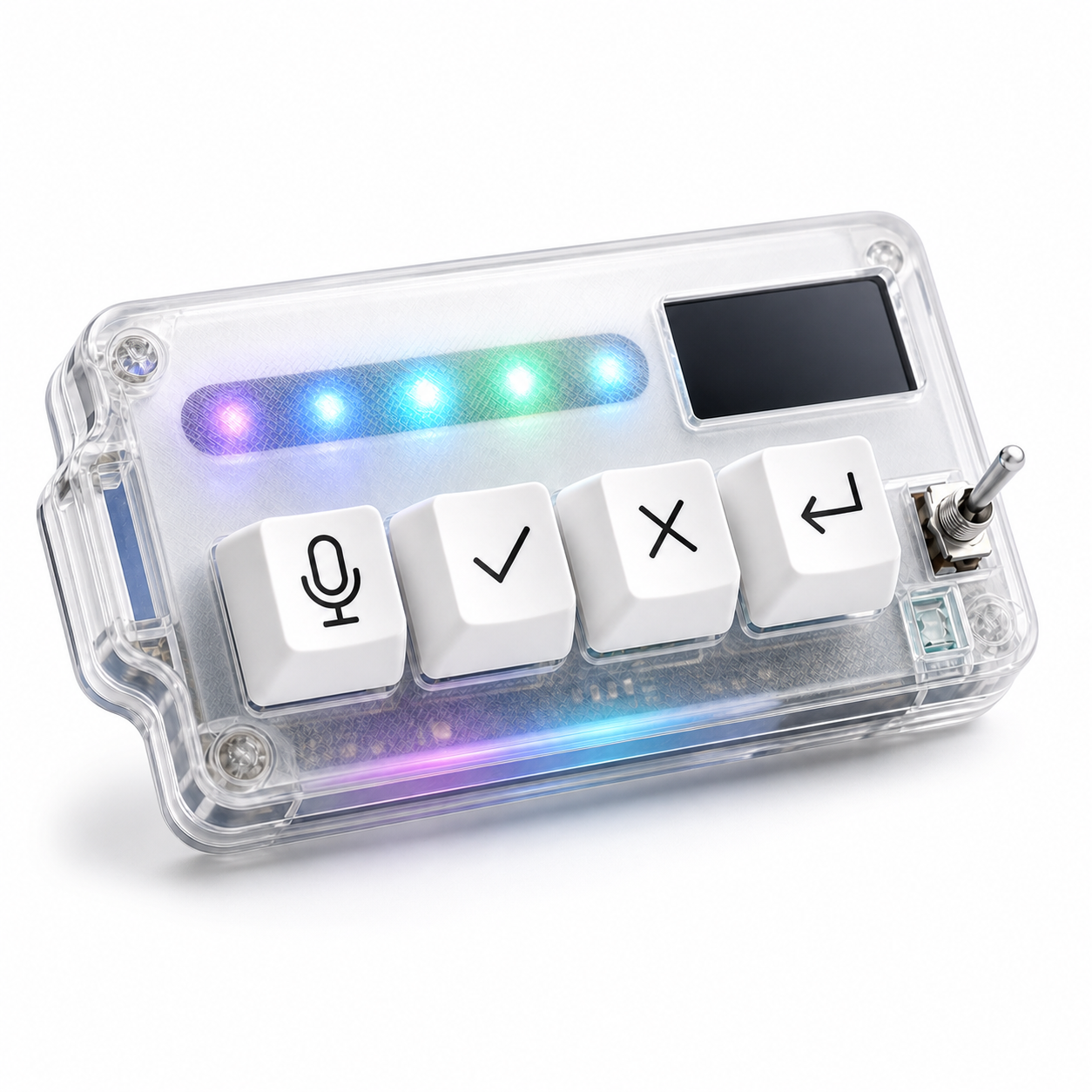
HarnessKeys supports this voice pattern by giving the microphone action a dedicated physical key beside approve, cancel, and return-style controls. The device also includes USB and Bluetooth support, a custom status screen, an RGB light bar, and a compact body that can sit near the main keyboard.
A microphone key works when it feels like a clean doorway, not a performance. Press when the thought is ready. Speak the context. Review if needed. Send when confident. If that pattern fits your AI coding routine, the HarnessKeys AI Workflow Keypad gives voice input a stable place in the workflow.
