
Workflow Design
How to Combine Voice Prompts With a Physical Keypad
Jun
Voice prompts and a physical keypad work well together because they solve different parts of the same problem. Voice is good for getting intent out quickly. A keypad is good for making repeated control actions predictable. When they are combined well, the developer can speak fuller instructions and still keep the AI session under tight control.
The mistake is treating voice as the whole workflow. Voice is one input. The keypad gives that input a rhythm: start speaking, pause to review, send or correct, approve or cancel the result, then repeat with better context.
Begin with a small spoken instruction
Do not start by dictating a long, wandering prompt. Use voice for a compact instruction with clear boundaries. For example: “Inspect the failing checkout test, explain the likely cause, and do not edit files yet.” That is a strong spoken prompt because it includes the task, the expected output, and a safety boundary.
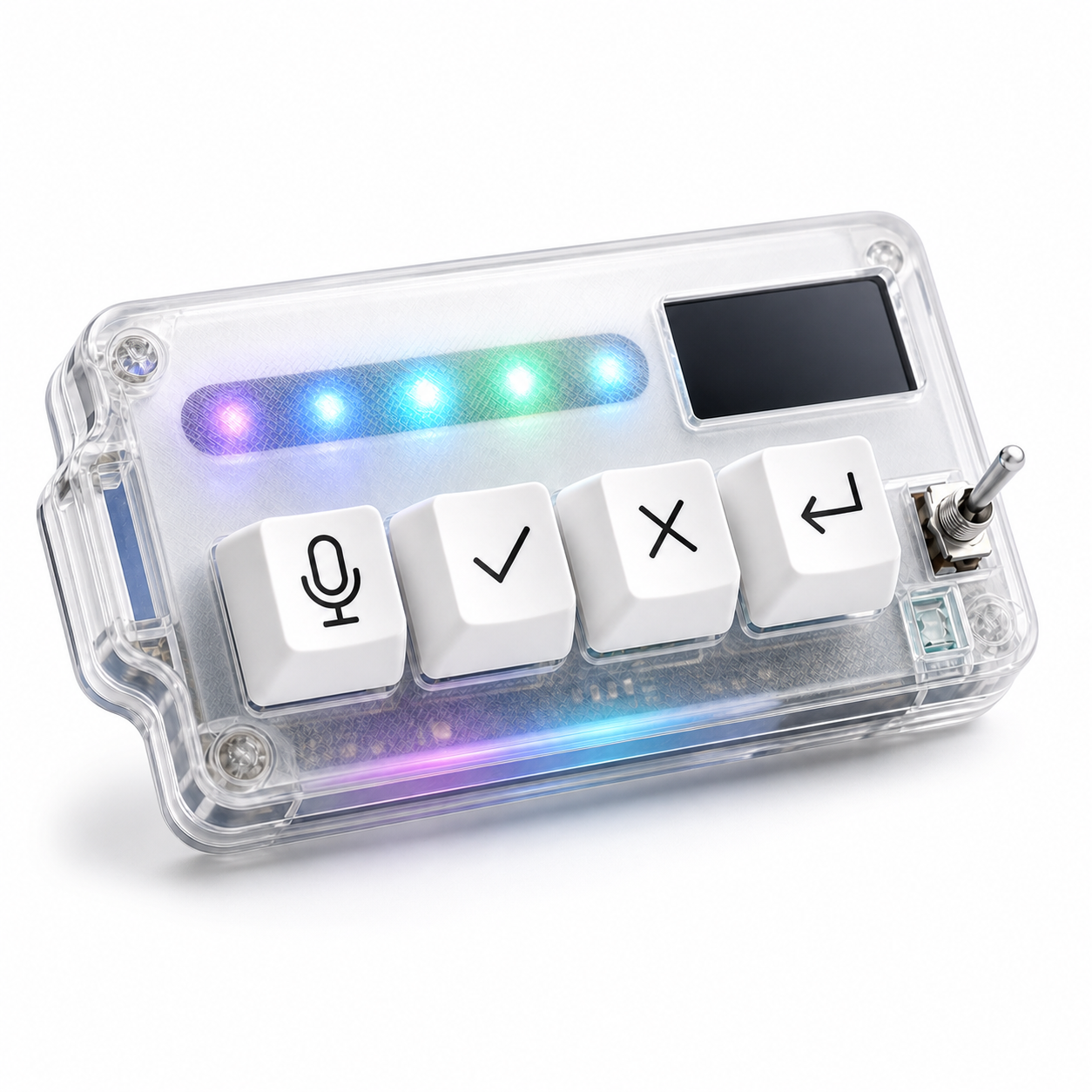
A microphone key helps because it gives the spoken moment a physical start. Pressing it tells your brain that the next sentence is meant for the AI tool, not just a thought near the computer.
The goal is not perfect speech. The goal is complete intent.
Keep the first spoken instruction short enough that you can remember what you asked after the AI starts answering. If you cannot summarize your own prompt in one breath, the tool may also struggle to follow it. Voice makes it easy to speak too much; the keypad rhythm should encourage clean turns.
Pause before sending
The pause is where many voice workflows become usable. After speaking, take a moment to review the transcript or the prompt field. Did the tool capture the right file name? Did it miss a “do not”? Did it turn a package name into normal English?
This pause does not need to be long. It just needs to exist. Without it, voice can feel reckless. With it, voice becomes a fast drafting method that still respects accuracy.
A return-style key should usually come after this pause. Speak first, check second, send third.
Use approve as a separate decision
Once the AI responds, do not let the voice prompt’s speed pressure you into accepting the answer. Read the output. Check the diff. Decide whether the suggestion matches the prompt and the codebase.
If it does, an approve key can move the workflow forward without mouse travel. If it does not, do not approve just because the session has momentum. The keypad should make judgment easier to act on, not weaker.
Voice makes it easier to ask. Approve makes it easier to say yes after review. Keep those jobs separate.
Cancel quickly when the response drifts
Voice prompts can be rich, but they can also be imprecise. If the AI misunderstands the spoken instruction, cancel early. Do not wait for the model to produce a full wrong answer if the first signs are already bad.
A physical cancel key is useful because it reduces social hesitation. You are not being rude to a machine. You are steering a workflow. Stop, restate the boundary, and try again with a narrower prompt.
A good correction might be: “Cancel that direction. Only explain the failing assertion first. Do not edit code yet.” That turns a bad response into a clearer next turn.
This is where the physical keypad matters most. Voice can create momentum, and momentum can make a wrong response feel worth finishing. A dedicated cancel key gives you permission to interrupt the session as soon as the direction is wrong.
Build a repeatable session rhythm
A practical rhythm looks like this: select or expose context, press microphone, speak the prompt, review the transcript, press return to send, read the response, approve useful work, cancel bad direction, then speak the next correction. It is simple enough to repeat without thinking about the hardware.
That rhythm is more valuable than any single feature. It keeps voice from becoming loose and keeps the keypad from becoming a set of random buttons.
After a few sessions, you will notice which part needs improvement. Maybe the transcript review is too slow. Maybe cancel is in the wrong position. Maybe you need shorter spoken prompts. Adjust one piece at a time.
What HarnessKeys contributes to the combined workflow
HarnessKeys is designed around the combined voice-plus-control loop. It has a microphone key for spoken input, approve and cancel keys for judgment, and a return-style key for moving the prompt workflow forward. USB and Bluetooth support make placement flexible, while the custom status screen and RGB light bar provide quick feedback.
The device does not make voice prompts automatically good. You still need clear task framing, privacy awareness, and review discipline. What it does is give the repeated actions a stable physical shape.
Voice without controls can feel loose. Controls without voice can still leave you typing long prompts. Together, they can make AI coding feel more natural: say the intent, check the capture, send deliberately, and steer with physical yes and stop actions. For that kind of setup, see the HarnessKeys AI Workflow Keypad.
